

Uptime Monitors
Uptime monitors probe HTTP and HTTPS endpoints on a regular schedule and alert you when something goes down or recovers.
Investigation scope
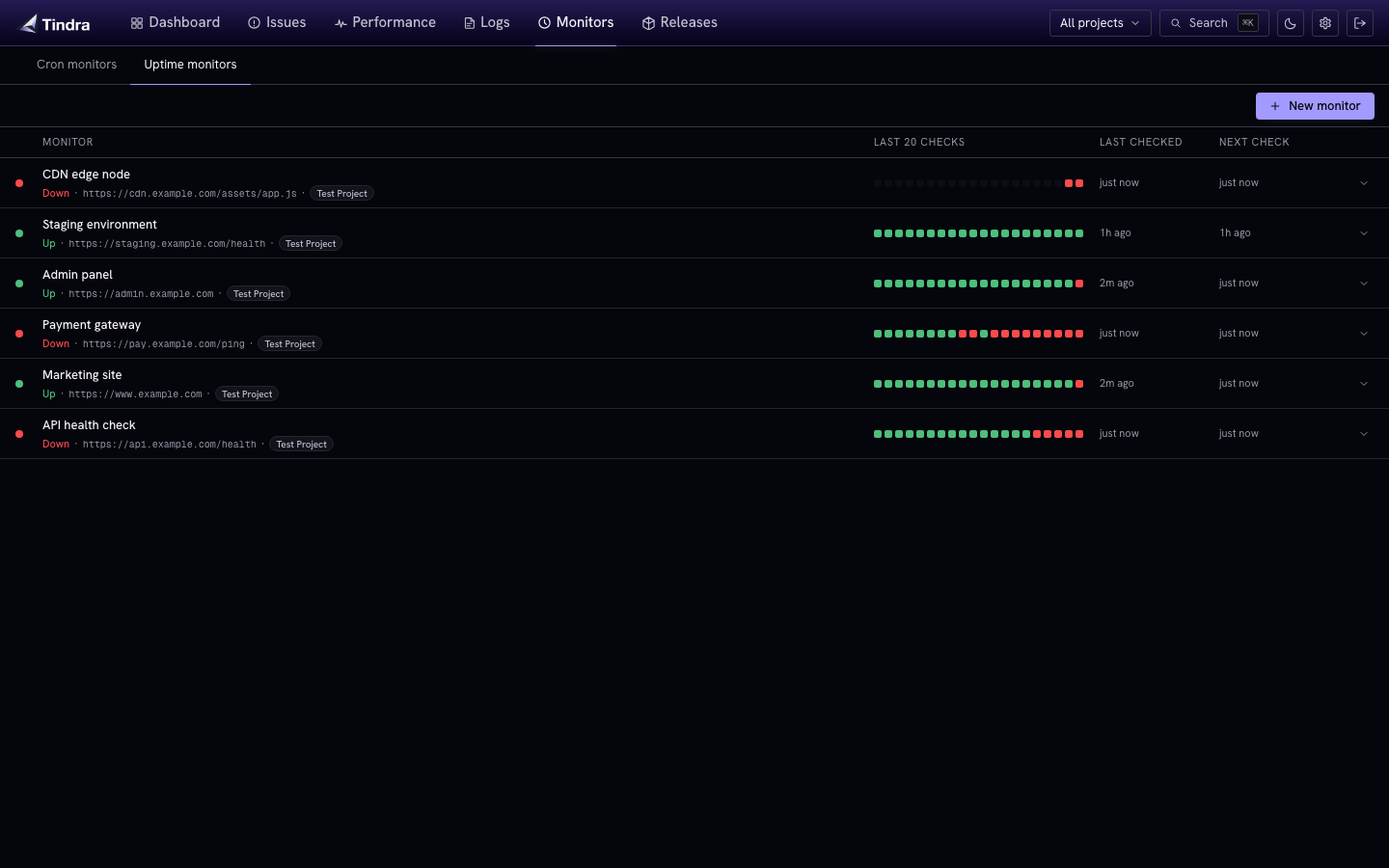
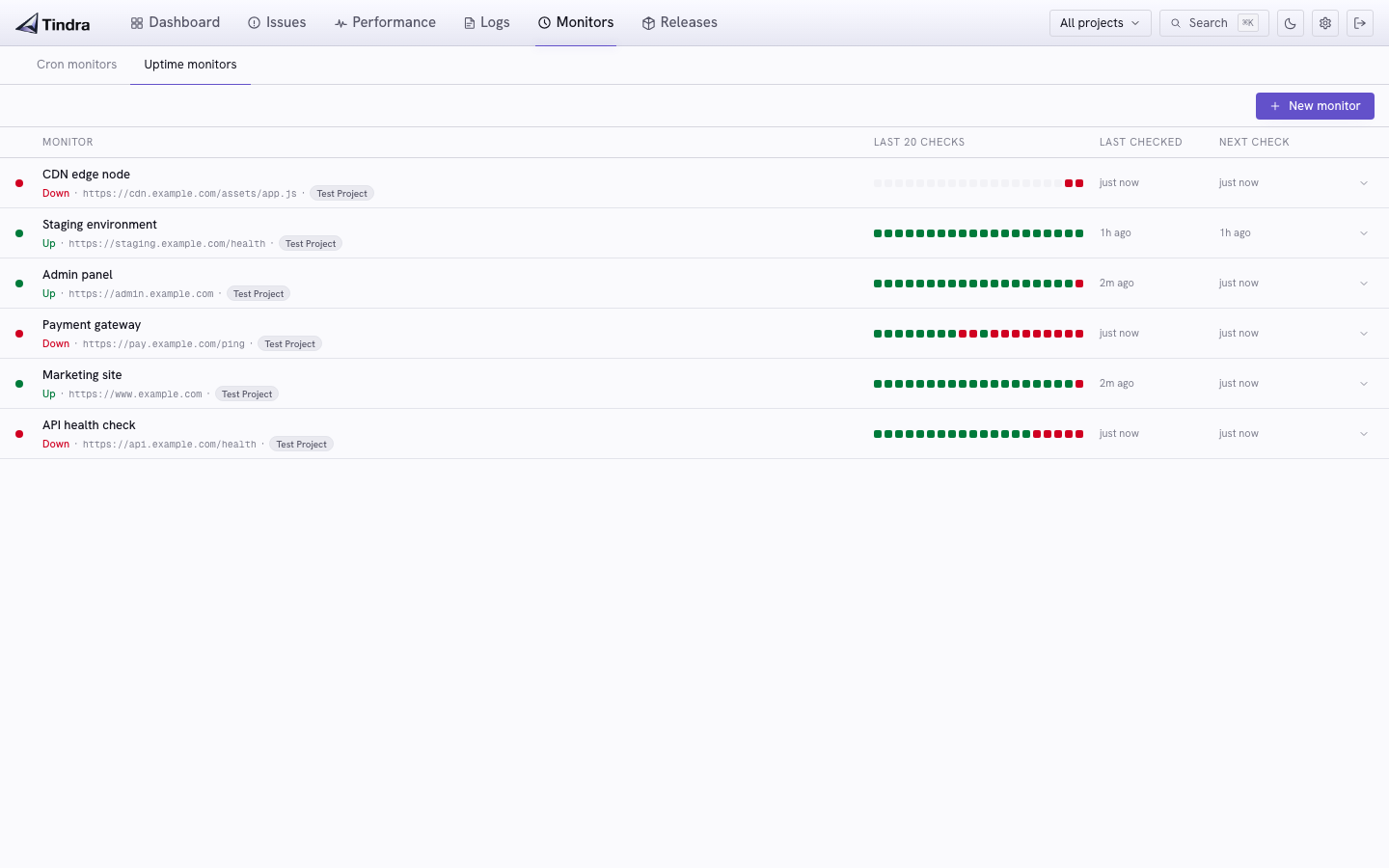
Monitors show current state, the latest checks, and explicitly labeled uptime windows. Shared investigation time and environment filters do not apply, although your context is retained when you return to telemetry views. Monitor lists refresh every 60 seconds while automatic refresh is active. See Shared Filters.
How it works
Tindra probes each active monitor every 30 seconds. A monitor goes down after 2 consecutive failures and comes back up on the first successful probe. The transition triggers the corresponding alert rule if one is configured.
Uptime checks do not count toward your monthly event quota.
Creating a monitor
Go to Monitors > Uptime and click New monitor. Configure:
| Field | Description |
|---|---|
| Name | A label for the monitor, shown in the list and alert payloads |
| URL | The full HTTP or HTTPS URL to probe |
| Method | HEAD (default, low overhead) or GET (required for body checks) |
| Interval | How often to probe, in seconds |
| Timeout | How long to wait before marking the probe as failed |
| Expected status codes | Accepted codes or ranges, e.g. 200, 200-299, 200,301 |
| Body contains | Optional string that must appear in the response body (GET only) |
Private endpoints and redirects
Uptime probes block private/internal destinations by default, including hostnames that resolve to those addresses. For an intentionally internal monitoring setup, set UPTIME_ALLOW_PRIVATE_IPS=true on the Tindra server and recreate the container. This is independent of WEBHOOK_ALLOW_PRIVATE_IPS, which controls alert and passthrough delivery.
The connection checks the resolved addresses and connects to a checked IP. A hostname resolving to any blocked address is refused while private access is disabled.
Probes do not follow redirects. If an endpoint redirects, either monitor the final URL or explicitly accept the redirect status where that is the intended health condition. A blocked destination or connection failure appears in check history. See Configuration.
States
| State | Meaning |
|---|---|
unknown |
No probes have completed yet |
up |
Last probe succeeded |
down |
Two or more consecutive failures |
Alerting
Create an alert rule with trigger Uptime down to get notified when a monitor transitions to down. Use Uptime recovered to get notified when it comes back up.
Alert payloads include up to 5 affected monitors with their names and URLs. Alert rules are configured in Alerts and support email, Slack, Discord, Microsoft Teams, and webhook channels.
Check history
Each monitor shows its recent probe history in a timeline strip. Click a monitor to see the full check log with timestamps, HTTP status codes, response times, and any error messages.
Pausing a monitor
Pause a monitor from the monitor detail panel. Paused monitors are skipped by the probe worker and do not trigger alerts.